Choosing digital art software feels overwhelming when every artist swears by something different. The short answer: pick by your device and workflow first, then by price, and start with a free or one-time-purchase tool.
| Item | Value |
|---|---|
| Blender licence | Always available as free software (GNU GPL) |
| Procreate platform | iPad, with Apple Pencil support |
| Clip Studio Paint Ver. 5.0 release date | March 11, 2026 |
| Clip Studio Paint PRO, one-time purchase | US$63.00 (tax inclusive) |
| Clip Studio Paint EX, one-time purchase | US$277.00 (tax inclusive) |
Figures come from the Clip Studio Paint Ver. 5.0 support page and the Blender FAQ. Prices, versions and licences can change, so check the source before you rely on them.
What digital art software actually does
Many painting programs turn pen movement into marks on a layered canvas; modelling programs build three-dimensional scenes. The differences lie in how brushes feel, how layers and selections behave, and which extras are built in, such as animation, comic panels or three-dimensional modelling.
It helps to split the field into a few families, because most beginners compare tools that were never meant to compete.
- Painting programs focus on brush engines, blending and colour. They suit concept art, portraits and environments.
- Illustration and comic programs add clean line tools, rulers, perspective guides and page management.
- Sketching apps are fast and light, built for thumbnails and ideas rather than finished files.
- Modelling and rendering tools let you build a scene in space and paint over it, a common shortcut in concept work.
If your goal is professional concept work, the wider context in our guide to concept art explains what studios expect from a finished piece. The software is only the means, and the same fundamentals carry across every tool.
Start with your hardware, not the software
Your device narrows the list faster than any feature comparison. A program that runs only on tablets is irrelevant if you work on a desktop. Desktop software can also be used on a compatible laptop while travelling.
Think about three setups and what each allows:
- Desktop or laptop with a pen tablet. The widest choice of software, the most powerful brush engines and the easiest file management.
- Desktop with a pen display. The same software, but you draw directly on the screen, which many people find more natural.
- Tablet computer. Touch-first apps, portability and a simpler interface, with fewer advanced file-handling options.
If you have not bought hardware yet, read about drawing tablets before you pick programs, since pen pressure support differs by device. Beginners on a tight budget will find the best drawing tablet for beginners a useful companion to this guide.
The choice between drawing on a separate pad or directly on a screen also affects which software feels comfortable. Our comparison of graphics tablet vs pen display walks through that trade-off in plain terms.
The main software options and who they suit
Rather than rank programs, it is more honest to describe what each is built for. Here are the tools most often named in this field, using only what their own pages state.
Procreate for iPad
Procreate describes itself on its App Store page as made for iPad. The listing says it supports pressure sensitivity and Apple Pencil, and highlights high-resolution canvases up to 16k by 8k on compatible iPad Pros.
That makes it a natural fit if a tablet is your main device. It is not a desktop program, so it does not help if you work on a computer.
Clip Studio Paint
Clip Studio Paint is popular with illustrators and comic artists. Its support page says the current version was released on March 11, 2026.
You can buy a perpetual version, or sign up for a monthly or annual plan or the Update Pass, according to that page.
As of the Ver. 5.0 support page, the PRO perpetual version costs US$63.00 and the EX perpetual version costs US$277.00. The page says all prices are tax inclusive.
That support page also says an Update Pass or a monthly or annual plan is required to get features added after the initial release. Weigh that before you assume a one-time purchase covers every future feature.
Blender
Blender is best known for three-dimensional work, but concept artists use it to block out scenes and lighting before painting over a render. Its FAQ says that you are free to use it for any purpose, and that the GPL ensures all future versions remain available as free software.
The learning curve is steeper than for a pure painting app. The payoff is accurate perspective and lighting that you do not have to guess.
Free and low-cost programs
A good free program can take you very far, and there is no reason to pay before you know what you need. Our roundup of free digital art software covers the realistic choices, and it explains the trade-offs you accept by not paying.
If you already know a subscription tool and want to move away from it, the guide to photoshop alternatives for digital painting compares what you gain and lose when you switch.
Matching software to the kind of art you make
The type of work you want to produce should steer your choice more than any review. A tool that is excellent for comics can feel clumsy for moody environment paintings, and the reverse is also true.
- Character and portrait painting: look for smooth blending, soft brushes, a good colour picker and easy layer masks.
- Environment and landscape work: you need large canvases, texture brushes, quick selections and the ability to paint over photos or rendered blockouts.
- Comics and manga: panel tools, rulers, lettering and page management can speed up production.
- Quick ideation: a fast, minimal app with undo and zoom that never gets in the way of your thinking.
- Design with reference: software that lets you pin reference images beside your canvas helps you keep proportions honest.
Concept artists often mix tools. A common workflow is to rough out shapes in a quick sketching app, build lighting in a modelling program, and finish the details in a painting program. There is no rule that you must stay inside one program, although learning one thoroughly first makes the others much easier.
Pay attention to how you like to work, too. Most programs let you rearrange the workspace, so spend an hour tuning it before you decide the interface is the problem.
One-time purchase, subscription or free?
Pricing models shape your long-term cost more than the sticker price does. A one-time purchase is simple, but it may not include later feature updates. A subscription spreads the cost out and usually includes updates, but you stop having access if you stop paying.
Clip Studio Paint shows how mixed these models can be. Its Ver. 5.0 page offers a one-time version, an Update Pass and monthly or annual plans side by side, so you can match the model to how long you plan to use it.
Use this checklist before you pay for anything:
- Can you test it first with a trial, a free version or a refund window?
- Does the price include future updates, or only the current version?
- Does your device and operating system run it well?
- Can you export to common file formats if you leave?
- Will the cost still make sense if you only draw once a week?
Prices and regional rates change often, and tax treatment varies by country. Treat any figure in a review, including this one, as a starting point and confirm it on the seller’s own page.
Features that matter more than the brand
Two programs can look very different and still give you the same results, so judge the features you will use every day. Five of them are worth checking before you commit.
- Brush engine. Test how a brush responds to pressure, tilt and speed. A good engine feels like a pencil or paint, not a sticker.
- Layers and blend modes. Painters rely on these for lighting, glazes and quick colour changes.
- Selection and transform tools. Concept artists constantly resize, flip and warp shapes.
- Stabiliser and guides. Smoothing, perspective rulers and symmetry save time on clean line work.
- File compatibility. Layered files that open elsewhere keep you from being locked in.
Brushes deserve their own attention, since a set that suits you can change how quickly you improve. Our guide to digital painting brushes shows how to choose, test and organise them.
Canvas size and resolution matter too. A larger canvas gives you room to zoom in and refine, but it uses more memory and slows older devices, so match the canvas to what your hardware can handle.
Building a sustainable practice around your tools
Software is only useful if you open it regularly. Short daily sessions can help you maintain a regular drawing habit.
Set up your workspace once and save it. Put your favourite brushes, a basic colour palette and a reference panel where you can reach them, so starting a sketch takes seconds rather than minutes.
Keep a tidy folder system as well. Name files clearly, save versions as you go, and export a flattened copy for sharing while keeping the layered original safe. When a program updates, test it on a copy of a project before you trust it with important work.
Learn keyboard shortcuts gradually. Start with undo, brush size, zoom and layer visibility, then add a new shortcut each week. Small gains in speed make drawing feel smoother and keep you in the creative flow.
Common mistakes when choosing software
Most beginners lose time and money to a handful of predictable errors. Knowing them in advance is the cheapest way to avoid them.
- Buying before testing. Always try a free version, trial or demo so you know the brushes suit your hand.
- Chasing features you will never use. A long feature list looks impressive, but most daily work needs only a few tools.
- Switching constantly. Frequent switching can take time away from practice while you learn unfamiliar controls.
- Ignoring hardware limits. Heavy brushes and big canvases can lag on older machines and make drawing frustrating.
- Copying a favourite artist’s setup. Their results come from their skill, not from the menu they use.
Another trap is treating brushes as a substitute for fundamentals. Downloading piles of brushes will not fix weak values or a muddy composition, whereas a single hard round brush and a soft one can carry a whole painting.
If you ever feel stuck, return to simple exercises: quick thumbnails, value studies in greyscale, and short timed sketches. These work in any program and show whether the problem lies in the tool or in the drawing.
Working on a tablet computer
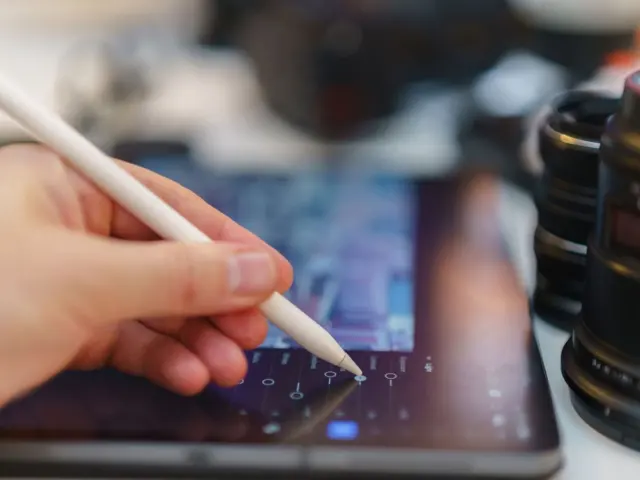
A tablet can be a convenient way to start, but a compatible pen may need to be purchased separately. Software built for touch also tends to hide complexity, which helps when you are learning.
The trade-off is flexibility. Desktop programs often offer deeper brush settings, more file formats and easier use with other tools. If you are weighing a tablet, our guide to the ipad for digital art goes through what to look for in a model and the accessories that matter.
Procreate shows the touch-first approach clearly. Its App Store page highlights its interface, built for iPad and Apple Pencil, and notes support for pressure sensitivity.
Screen size is worth thinking about as well. A small screen makes fine detail tiring, so you may rely more on zooming, while a large one gives you a better overview of a composition at a glance.
Whichever route you choose, keep your project files backed up. Cloud storage or an external drive costs little compared with losing a month of work to a failed device.
Set up and calibrate before you judge a program
Many artists blame a program for problems that come from setup. If lines look offset from your pen tip, or pressure feels uneven, adjust the driver and pen settings before you write the software off.
Follow these steps when something feels wrong:
- Update the tablet driver and the software to the latest versions from the maker.
- Check that your pen pressure shows up in the program’s own brush settings.
- Adjust the pressure curve until light strokes and firm strokes both feel natural.
- Align the cursor with the pen tip if you use a pen display.
- Restart the program and test again with a simple brush.
Our walkthrough on how to calibrate a drawing tablet explains each step in more detail. Colour matters too: a screen that is far from accurate will make your work look different on other displays, so check it before you finish anything for print.
A simple way to choose and keep improving
Do not try to master five programs at once. Pick one, give it a few weeks of regular drawing, and judge it by whether you are making work you like rather than by its feature list.
A practical path looks like this:
- Choose software that runs on the device you already own.
- Start with a free or low-cost option and use it daily for a few weeks.
- Learn its shortcuts, layers and brush settings thoroughly before comparing alternatives.
- Switch only when you hit a limit you can name, such as a missing tool.
The software supports your skills, but it does not replace them. Studying anatomy, light, composition and colour will improve your pictures far more than a new program will. For ideas on how to apply those skills, see our overview of illustration techniques, which pairs well with whichever tool you pick.
Finally, remember that pros switch tools for reasons that rarely apply to learners: team pipelines, client file formats and long habits. You do not need to copy their setup. A modest program you enjoy using will teach you more than an expensive one you avoid opening.
Frequently asked questions
What is the best digital art software for beginners?
Show answer
There is no single best choice. Start with a program that runs on your device and costs little or nothing, then move on only when you hit a limit you can name.
Do I need a subscription to make digital art?
Show answer
No. Free programs and one-time purchases exist, and Clip Studio Paint’s Ver. 5.0 page, for example, lists a perpetual version alongside its monthly and annual plans. Check each seller’s page for current terms.
Can I use digital art software without a drawing tablet?
Show answer
Yes, you can draw with a mouse, but a pen with pressure sensitivity makes brushes feel much more natural. Most artists add a tablet once they know they enjoy drawing.
Is free software good enough for professional work?
Show answer
Free software can produce professional results, because skill matters more than price. Blender’s FAQ, for example, says you are free to use it for any purpose. Check each licence if you work for clients.