Shopping for drawing tablets can feel like decoding a spec sheet. You only need to pick the right type first, then compare a handful of features that actually change how drawing feels.
This guide sits inside our wider look at digital art software, because a tablet is only half of a digital setup.
| Item | Typical value |
|---|---|
| Device types | Pen tablet, pen display, standalone tablet |
| Pressure levels listed | 4,096, 8,192 or 16,384 |
| LPI (tracking resolution) listed | 5,080 or 5,280 |
| Accuracy listed | ±0.3mm or ±0.25mm |
| Tilt support listed | 60° or ±60° |
These figures come from Creative Bloq’s spec guide and can change as new models launch, so check the source and the maker’s own listing before you rely on them.
The three types of drawing tablets
Before you look at any spec, make sure you are buying the right kind of device. Creative Bloq puts it bluntly: before worrying about pressure sensitivity or LPI, make sure you’re buying the right type of device.
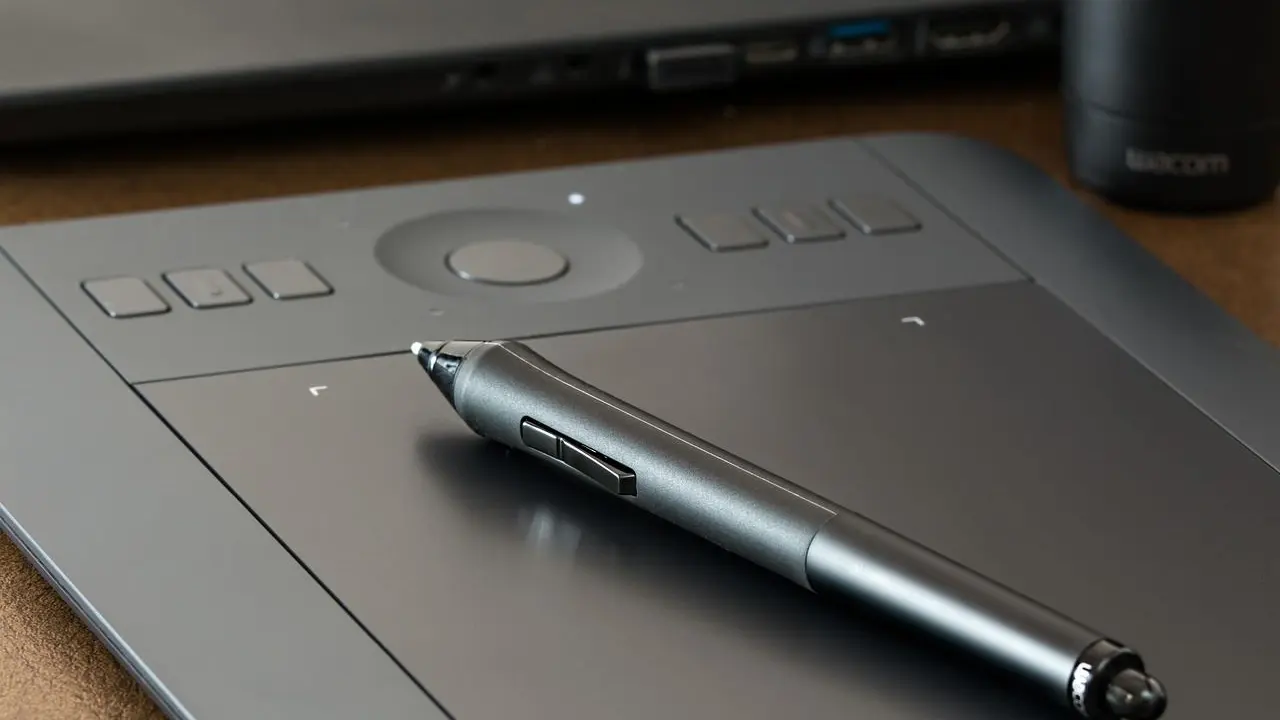
- Pen tablet (graphics tablet): a flat, screenless pad. You draw on it while looking at your computer monitor.
- Pen display: a tablet with a built-in screen, so you draw directly on the image.
- Standalone tablet: a full tablet computer with its own processor and apps, such as an iPad-style slate.
Each suits a different budget, desk and habit. The next sections cover them one by one.
Pen tablets: screenless and simple
A pen tablet tracks the stylus and translates its movement into lines on your computer’s display, as TechRadar’s comparison explains. You do need an external display: a computer with a high-resolution monitor is best, though a laptop works fine.
Many artists find that keeping the drawing surface separate from the screen helps avoid a cramped feeling. The catch is the learning curve, because your hand moves in one place while your eyes watch another.
That hand-eye gap usually fades with practice. If you are just starting out, our guide to the best drawing tablet for beginners goes deeper on entry-level choices.
Pen displays and standalone tablets
A pen display is a dedicated drawing tablet with a built-in screen, so you do not need a separate monitor to see what you are doing. Most pen displays are only displays, so you still need a computer to run your software.
Some models run on their own. TechRadar mentions Wacom’s Mobile Studio Pro as a display capable of running independently, a type also known as a pen computer.
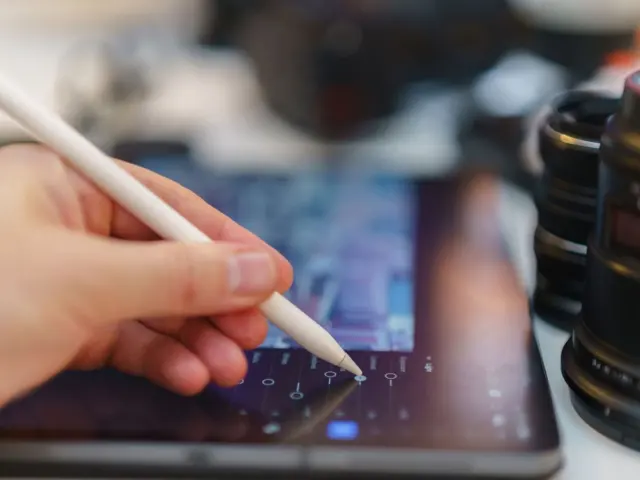
A standalone tablet goes further, bundling screen, battery, processor and apps in one body. It is the most portable route, and you can sketch anywhere without a computer.
Features to compare on drawing tablets
Once you know the type, a few specs deserve attention. Here is what each one means and how much weight to give it.
Pressure sensitivity
You will see 4,096, 8,192 or 16,384 pressure levels listed. Creative Bloq notes that brands love advertising 16,384 levels because it is twice as many as 8,192, yet for most artists the difference is difficult to perceive in everyday use.
Treat pressure levels as a tick-box, not a deciding factor. Pen feel, initial activation force (how lightly you must press to register a mark) and accuracy matter more.
LPI and accuracy
LPI stands for Lines Per Inch and measures how precisely the tablet tracks your pen. Listings show 5,080 or 5,280, and the gap between them won’t transform your artwork.
Accuracy is usually listed as ±0.3mm or ±0.25mm. One caution: LPI describes the digitiser, so it matters more for screenless pen tablets than for newer pen displays.
Tilt support
Tilt lets the tablet recognise the angle of your pen, which is useful for shading with the side of a virtual pencil or brush. Specs usually read 60° or ±60°.
Active area
The active area is the part of the tablet that responds to your pen, and it differs from the device’s full size because of the bezels. A larger area gives more freedom for broad strokes, while a smaller one suits compact desks or people who prefer less arm movement.
Parallax
On pen displays, reduced parallax makes the pen tip appear closer to where the cursor actually is. That creates a more natural connection between pen and artwork.
Which type fits your situation?
Your desk, your budget and your existing gear decide this more than any spec does. Here is a plain way to think about each situation.
If you already own a computer
A pen tablet or a pen display both work, because the computer does the heavy lifting. A pen tablet is the lighter option on the desk, while a pen display lets your hand and eyes stay in the same place.
If you want to draw away from a desk
A standalone tablet or a pen computer is the natural fit, since it runs software on its own. You give up some of the simplicity of a pen tablet, because you are now managing a full device with its own battery and updates.
If you are unsure
Start with the type that matches how you already work. Concept artists who paint at a desk for long sessions often lean towards a larger active area, while sketchers who travel lean towards portability. Neither choice locks you in, and your drawing skills transfer between all three types.
Whichever you pick, the software matters just as much as the hardware. Brush engines, layer handling and pen settings all shape how the tablet feels, so give a new setup a few weeks before judging it.
Setting up and choosing
A simple order of decisions keeps the process calm:
- Choose the type: pen tablet, pen display or standalone.
- Check what you already own, such as a computer and monitor.
- Pick an active area that fits your desk and your arm movement.
- Confirm tilt support and a pen that suits your grip.
- Ignore small differences in pressure levels and LPI.
After you unbox your tablet, spend a few minutes on how to calibrate a drawing tablet, so the pen tip lands where you expect.
Expect an adjustment period of practice: straight lines, circles and light-to-heavy strokes are good warm-ups. Your first drawings may look wobbly, which is normal while your hand learns a new surface.
Test the pen in your own software if you can, since software support for tilt and pressure varies. Returns policies are worth reading before you buy.
A last practical point is the pen itself. Check whether it needs charging, how the side buttons can be mapped to shortcuts, and whether spare nibs are included, since nibs wear down with regular use. These small details shape daily comfort far more than a headline number on the box.
Frequently asked questions
Do I need a computer for drawing tablets?
Show answer
Usually yes. Pen tablets need a computer or similar device with a display, and most pen displays are only displays. Standalone tablets and pen computers run software on their own.
Are 16,384 pressure levels better than 8,192?
Show answer
Not noticeably for most people. Creative Bloq says the difference is difficult to perceive in everyday use, and that accuracy matters more.
What does LPI mean on a tablet?
Show answer
It is a tracking-resolution figure for the pen. It matters more on screenless pen tablets than on pen displays, and small gaps between models are not worth paying extra for.
Is a pen display better than a pen tablet?
Show answer
Neither is better in every case. A pen display lets you draw directly on the image, while a pen tablet separates the surface from the screen, which some artists find more comfortable.